
Troubleshooting eSIM Issues Abroad: A Traveler’s Guide
Traveling abroad is exciting—until your eSIM not working becomes a nightmare right when you need to connect. Many travelers face eSIM activation errors, travel eSIM problems, and international roaming issues that disrupt their trip. If you’re one of them, don’t worry! This guide will help you troubleshoot your eSIM not working step-by-step so you can get back online quickly.
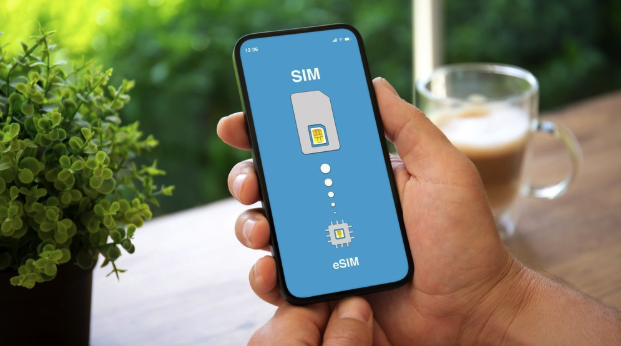
Understanding Why Your eSIM Is Not Working
Before diving into solutions, it’s important to understand the main reasons your eSIM not working. Common causes include:
Incorrect activation: The eSIM may not have been activated properly before leaving your home country.
Network restrictions: Some local networks don’t support eSIM international roaming.
Software glitches: Outdated device software can lead to travel eSIM problems.
Profile errors: If your eSIM profile isn’t installed correctly, you may face eSIM activation errors when connecting abroad.
Knowing what’s causing the problem helps you fix it faster and avoid the same issue in the future.
Step-by-Step Fixes for eSIM Not Working
When your eSIM not working while traveling, follow these proven steps to troubleshoot effectively:
1. Check Network Compatibility
Your eSIM not working might be due to incompatibility with the destination network. Always ensure your carrier supports eSIM international roaming. Some countries or networks may not allow eSIM connections, so verify coverage with your provider before your trip.
2. Restart Your Device
Sometimes the simplest solution works. Restarting your device refreshes your mobile settings and can resolve temporary travel eSIM problems.
3. Reinstall the eSIM Profile
If your eSIM not working persists, delete and reinstall the eSIM profile. Make sure you have the QR code or activation details from your carrier handy. Reinstalling fixes eSIM activation errors and profile mismatches.
4. Turn On Data Roaming
One of the most common reasons for eSIM not working abroad is data roaming being turned off. Go to Settings → Mobile Data → Data Roaming and enable it to connect to foreign networks.
5. Update Device Software
Outdated software can cause travel eSIM problems and prevent your device from connecting. Update to the latest version of iOS or Android to ensure full compatibility.
Fixing eSIM Activation Errors Before You Travel
Preparation is key. Avoid your eSIM not working abroad by ensuring proper setup before you leave:
Activate in Advance
Always activate your eSIM at least 24 hours before departure. This prevents eSIM activation errors that occur when trying to set up in a foreign network environment.
Test Your Connection
Once activated, test your connection by turning off Wi-Fi and ensuring mobile data works. This helps identify travel eSIM problems early.
Save a Backup Option
If your eSIM not working, always carry a physical SIM card or have a second eSIM provider as a backup. This is especially useful when eSIM international roaming fails due to country restrictions.
What to Do If eSIM Not Working During International Roaming
Even after setup, eSIM not working can happen due to eSIM international roaming limitations. Here’s what you can do:
- Manually select a network – Go to Settings → Cellular → Network Selection and choose a compatible carrier manually.
- Reset network settings – This can solve deep-rooted travel eSIM problems caused by incorrect configurations.
- Contact customer support – Your carrier can remotely reset your eSIM and help resolve eSIM activation errors quickly.
Common Travel eSIM Problems and Their Quick Fixes
| Problem | Possible Cause | Quick Fix |
| No signal after landing | eSIM international roaming not supported | Manually choose a local network |
| Activation failed | eSIM activation errors | Reinstall eSIM profile |
| Mobile data not working | Roaming off | Enable data roaming |
| Slow internet speed | Local carrier limitation | Switch to a different network |
If your eSIM not working even after trying these steps, reach out to your provider’s support team. Most issues can be fixed remotely.
How to Prevent eSIM Not Working in Future Trips
To avoid eSIM not working situations during your next journey:
- Always verify eSIM international roaming support for your destination.
- Keep your device updated to prevent travel eSIM problems.
- Use trusted eSIM providers with global coverage.
- Save your QR activation code safely to re-scan if needed.
With these preventive measures, you’ll enjoy seamless connectivity wherever you go.
Conclusion
A eSIM not working issue abroad can be frustrating—but with the right steps, it’s completely fixable. From checking compatibility and updating software to reinstalling your eSIM profile, these troubleshooting methods can help you restore your connection quickly. Remember, planning ahead and testing your eSIM before you travel can save you from last-minute travel eSIM problems and eSIM activation errors. Stay connected, stay informed, and enjoy your international journey hassle-free.
FAQs
1. Why is my eSIM not working after reaching another country?
Your eSIM not working could be due to eSIM international roaming not being enabled or your carrier not supporting that destination. Check roaming settings and network availability.
2. How can I fix eSIM activation errors?
To fix eSIM activation errors, reinstall your eSIM profile, ensure stable internet during activation, and contact your carrier if the problem continues.
3. Can I switch networks if my travel eSIM not working?
Yes, manually selecting another network can often solve travel eSIM problems when automatic network selection fails.
4. What should I do if my eSIM stops working mid-trip?
Restart your device, check data roaming, and reset network settings. If your eSIM not working continues, contact customer support for remote troubleshooting.